How to make K-pop fancam screenshots clearer
Choose a sharper fancam frame, avoid a tight crop, and enhance your K-pop screenshot for DIY photocards, concert freebies or a phone wallpaper.
Quick answer
Start with the clearest available video and pause on a frame where your idol is still. Save the screenshot before making a tight crop, then try 2× photo enhancement. Compare the face with the original and keep the version you prefer for a DIY photocard, concert freebie or wallpaper.
Start with
A still screenshot
Upload a JPG, PNG or WebP, rather than a video link.
Enlargement
2× or 4×
Start with 2×. The output limit is 24 megapixels.
Enhancement cost
1 HD credit
Compare and download the result. Failed enhancements are refunded.
Next step
Download or Maker
Creating a photocard is a separate credit charge.
On this page +
- 011. Choose a frame with a clear face
- 02The path from a saved frame to a photocard
- 032. Leave room around your idol before you crop
- 043. Enhance the saved screenshot
- 054. Compare the face before keeping the result
- 065. Download it or make a fan-made photocard
- 07A sharper-looking screenshot can still lose detail
1. Choose a frame with a clear face
That expression you love may only last a moment. Pause around it and compare nearby frames: a brief still pose often gives you a better starting point than the middle of a fast turn. Look at the eyes and mouth before judging the stage lights or outfit.
Use the highest-quality version available to you and let it finish loading before capturing the frame. If the player is showing a low-quality preview, enlarging its screenshot will also enlarge the missing detail. Save the screenshot directly instead of passing it through several messaging apps.
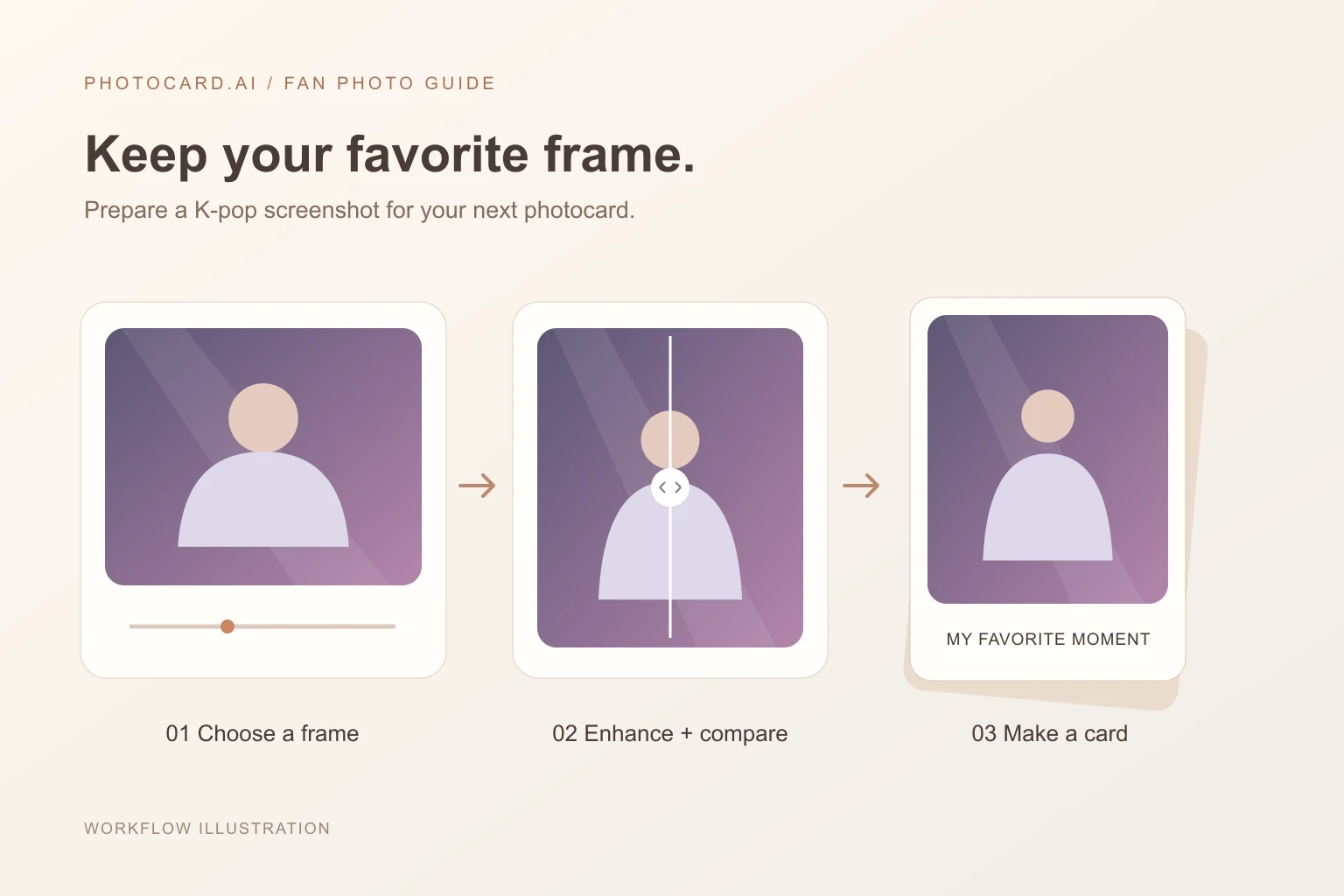
The path from a saved frame to a photocard
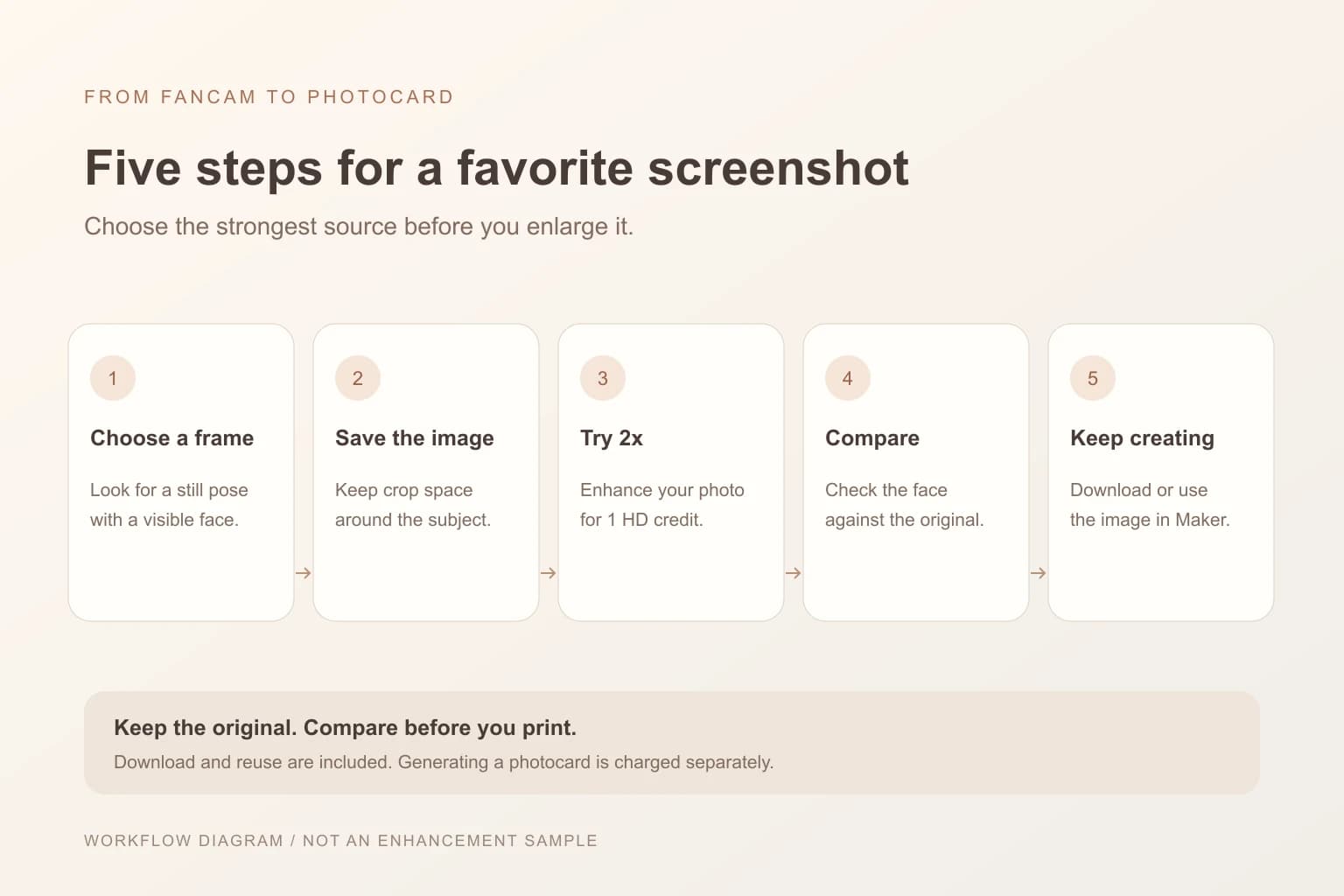
2. Leave room around your idol before you crop
Keep the saved screenshot as your original. When you crop, leave space above the hair and around the shoulders so you can still fit the photo into a vertical card. A very tight crop gives you fewer source pixels and fewer layout choices.
For a group shot, choose a frame where your favorite member is already large enough to see clearly. Cropping a tiny face from the back of a wide stage shot leaves little detail for an enhancer to work with. You can make the final layout crop in Maker after comparing the enhanced image.
3. Enhance the saved screenshot
- 01
Upload the image
Open K-pop Photo Enhancer and choose your saved JPG, PNG or WebP. The limit is 12 MB and 24 megapixels. The tool accepts still photos; it does not download or repair a fancam video.
- 02
Start with 2×
Choose 2× for your first enlargement. You can choose 4× when you need a larger image, but a larger pixel count does not guarantee more accurate facial detail. Large inputs use a smaller factor to stay within the 24-megapixel output limit.
- 03
Run one enhancement
Sign in and click Enhance photo. Each enhancement uses 1 HD credit, including the finished JPG download. Wait for the result before deciding whether you need another attempt.
4. Compare the face before keeping the result
Use the before-and-after slider and judge the image at the size you plan to use.
- ✓The eyes, mouth and expression still look like the person in the original.
- ✓Hair edges and accessories do not have distracting halos or invented-looking detail.
- ✓The face has not become unnaturally smooth while the clothes look sharp.
- ✓You prefer this result over the original at your planned photocard or wallpaper size.
5. Download it or make a fan-made photocard
Download the enhanced JPG to keep the photo on its own, or choose Use in Maker to place it in a photocard template. Downloading or applying that result does not run another enhancement. Maker keeps the source file available through Restore original; generating the card uses its own credit.
For concert freebies, check one printed card before making a batch. For a wallpaper, preview the photo on your phone and check how the screen crops it. A good card crop and a good wallpaper crop may need different space around the face.
Questions people ask
Frequently asked questions
Can I upload a fancam video?
The enhancer accepts still JPG, PNG and WebP images. Save a screenshot from your video first; video files and video links are not supported.
Should I choose 2× or 4× for a K-pop screenshot?
Start with 2× and compare the result. Choose 4× if you need larger dimensions, while remembering that enlargement cannot guarantee accurate details missing from the source. Output is capped at 24 megapixels.
Can I enhance an idol selfie saved from Pinterest?
Yes, if you have saved it as a supported photo file. Look for the highest-quality available source first. A small preview or a repeatedly compressed copy may still lack detail after enhancement.
Can I use the enhanced photo for concert freebies?
You can bring it into Maker to prepare a fan-made card. Use a photo you have permission to reproduce and print one sample to check the crop, color and clarity before making a batch.
Does downloading or using the result in Maker cost another enhancement credit?
No. One enhancement costs 1 HD credit and includes its JPG download and reuse in Maker. A new enhancement is another request, and generating a photocard is charged separately.
On this page +
- 011. Choose a frame with a clear face
- 02The path from a saved frame to a photocard
- 032. Leave room around your idol before you crop
- 043. Enhance the saved screenshot
- 054. Compare the face before keeping the result
- 065. Download it or make a fan-made photocard
- 07A sharper-looking screenshot can still lose detail